


Cronus Zen · PS5 · Modern Warfare 4
How to set up a Cronus Zen on PS5 for MW4, step by step.
Got a Cronus Zen and a PS5? MW4 is a PS5-only game, so the old PS4 tricks don’t work. This guide walks you through the setup that does: Zen LINK, the right PS5 settings, which cable goes in which port, and loading Saturn so you’re in a match with your mods running in about 20 minutes.
Quick answer
Update the Zen to firmware 2.2.14, turn on Remote Play and set the controller Communication Method to Use USB Cable on your PS5, then set up a Zen LINK on 2.4 GHz Wi-Fi. Load your script into a memory slot with Zen Studio, plug the Zen into the PS5 through CONSOLE/PC, the Zen LINK into A1 and your DualSense into A3. Then launch MW4.
Start here
Why MW4 on PS5 needs a Zen LINK
For years the Cronus Zen ran PS5 consoles by booting the PS4 version of a game. Call of Duty was always released on PS4 as well, so that worked. MW4 is the first Call of Duty to skip PS4 entirely, which means there’s no PS4 version to boot, and those methods are out.
The official answer is Zen LINK, a small Wi-Fi module that plugs into the Zen and gives it full native PS5 support, including the DualSense and DualSense Edge with adaptive triggers, haptics, the touchpad, gyro and headset audio. If you’re buying a Zen for MW4 now, the Cronus Zen PS5 Ultimate Edition comes with one in the box.
Checklist
What you need
A Cronus Zen
On firmware 2.2.14 or newer. Step 1 shows you how to update it.
A Zen LINK module
The Wi-Fi module that gives the Zen full native PS5 support. It comes in the Cronus Zen PS5 Ultimate Edition, or you can add it to a Zen you already own.
A DualSense or DualSense Edge
Plus a USB cable that carries data. Charge-only cables are the most common reason a controller lights up and does nothing.
A Windows 10 or 11 PC
Only for the first setup and for loading scripts. You don’t need it while you play.
2.4 GHz Wi-Fi
The Zen LINK connects on 2.4 GHz, and your PS5 must be on the same network. A wired connection for the PS5 itself is even better.
Your MW4 script
We use Saturn, so that’s what the steps below load. Any Zen script installs the same way.
Step 1 · Firmware
Update your Cronus Zen
Zen LINK needs firmware 2.2.14 or newer. The update takes under a minute with the official Collective Minds web tool, then install Zen Studio 1.6.1 Build 82 or newer for loading scripts.
Start the Zen in bootloader mode
Hold the small blue reset button while you plug the Zen’s CONSOLE/PC port into your PC. Let go when the screen shows “Zen Bootloader”.
Open the update tool
Go to cronus.support/fw in Chrome or Edge, click Connect, pick Cronus ZEN and click Connect again.
Install the latest firmware
Click Latest 2.2.XX. It finishes in under 20 seconds, and the Zen flashes red, green and blue when it’s done.
Install Zen Studio
Download it for Windows from the official Cronus site. You’ll use it in Step 4.
Step 2 · Console settings
Set up your PS5
Go through these on the PS5 before you plug the Zen in. Most connection problems trace back to one of them.
Tip
Bluetooth off means the DualSense can’t switch the PS5 on any more. Use the power button on the console, and the Zen takes over from there.
Step 3 · Wi-Fi
Configure your Zen LINK
Put the Zen LINK into config mode
Hold the blue CONFIG button for at least 5 seconds while you plug the Zen LINK into your PC. Its light turns purple.
Open zenlink.local
Use Chrome or Edge and go to zenlink.local. Firefox, Safari and Opera aren’t supported.
Enter your 2.4 GHz Wi-Fi
If your router shows separate 2.4 GHz and 5 GHz networks, pick the 2.4 GHz one. If it won’t connect, try a password without special characters.
Finish the on-screen setup
Follow the remaining prompts. The light turns orange when it’s on your Wi-Fi.
Step 4 · Script
Load Saturn onto the Zen
Do this on your PC before you move the Zen to the PS5.
Connect the Zen’s PROG port to your PC
Zen Studio talks to the Zen through PROG.
Drag Saturn into a memory slot
Open Zen Studio, drag the Saturn script into a slot and click Program Device. Build and Run only loads it until the Zen restarts.
Make sure Tournament Mode is off
Tournament Mode turns scripts off. If Saturn loads but nothing happens in game, check this first.
Keep the setup PDF handy
It has the starting values for your main MW4 weapons, which you’ll use in Step 6.
Zen ready, but no script yet?
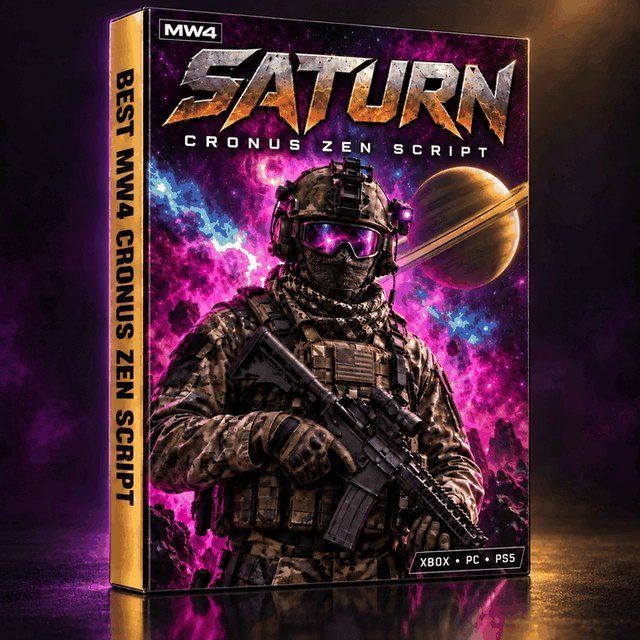
Saturn is built for MW4: Solar Aim Assist, per-weapon anti-recoil, movement mods and a mod menu that saves on the Zen. One file for MW4, Warzone and Black Ops 7.
Step 5 · Cables
Connect everything to the PS5
Four ports, one job each. Get these right and the rest takes care of itself.
Power on the PS5 and watch the Zen LINK light. Steady green means you’re connected, and it turns blue once a game is running.
Step 6 · In-game
Set up MW4 and play
Launch MW4, open the controller settings and set these before your first match. They’re the ones that matter most for a script.
Want every value, including sensitivity and the full firing range routine? Our MW4 Cronus Zen settings guide has the complete list.
Troubleshooting
PS5 problems and fixes
Light blinking red
The Zen LINK can’t find your Wi-Fi. Use the 2.4 GHz network, and re-enter the password without special characters.
Light blinking purple
It found Wi-Fi but not the PS5. Check Remote Play is on, the console has a name, and both are on the same network.
Drops after a while
Remote Play disconnects after a long idle period. Also check UPnP is on in your router and the PS5 isn’t set to enter Rest Mode.
Random disconnects in a match
Move the Zen LINK closer to the router, put the PS5 on a cable, and cut other heavy downloads while you play.
Controller lights up, nothing happens
Swap to a USB cable that carries data. Charge-only cables are the most common culprit.
No headset or mic audio
Audio needs the DualSense on USB in A3, not Bluetooth. Then set Sound › Microphone › Input Device to USB Headset.
Script loaded but nothing happens
Check Tournament Mode is off and that Saturn was programmed to a slot, not loaded with Build and Run.
DualSense Edge feels off
Use a profile with the default right stick curve, curve adjustment 0 and a 0% deadzone.
Still stuck? Open a ticket in our Discord and we’ll help you get connected.
Other platforms
On Xbox or PC instead?
It’s simpler there. On Xbox Series X|S and PC there’s no Zen LINK step: update the Zen, load your script, plug the Zen into the console or PC through CONSOLE/PC and your controller into the Zen. Saturn and the MW4 settings are the same on every platform.
Common questions
FAQ
Q.Does the Cronus Zen work on PS5 for MW4?
Yes. With a Zen LINK module, the Cronus Zen has full native PS5 support, including the DualSense and DualSense Edge. MW4 is a PS5 game with no PS4 version, so Zen LINK is the way to play it on PS5.
Q.Do I need a Zen LINK to use a Cronus Zen on PS5?
For native PS5 games like MW4, yes. Older methods relied on playing the PS4 version of a game, and MW4 doesn’t have one. Zen LINK comes in the Cronus Zen PS5 Ultimate Edition, or you can add it to a Zen you already own.
Q.Do I need a PC every time I play?
No. You need a Windows 10 or 11 PC for the first setup and to load or update a script. After that, the Zen and Zen LINK run on the PS5 without the PC.
Q.Can I use a DualSense Edge with the Cronus Zen?
Yes. Create a custom profile with the default right stick curve, curve adjustment at 0 and a 0% deadzone, because a custom curve on the controller changes how a script’s stick movements land.
Q.Why does my Cronus Zen keep disconnecting from the PS5?
Remote Play drops after a long idle period, and weak Wi-Fi causes random drops. Keep the Zen LINK close to your router, put the PS5 on a wired connection, make sure UPnP is on in your router, and set the PS5 not to enter Rest Mode while playing.
Q.Does the same setup work for Warzone?
Yes. Saturn is one file for MW4, Warzone and Black Ops 7, so once it’s running on your PS5 you don’t need to set anything up again for Warzone.
Zen connected?
Now give it the script built for MW4
Saturn gives you Solar Aim Assist, per-weapon anti-recoil, movement mods and a mod menu that saves on the Zen. One file for MW4, Warzone and Black Ops 7, with a setup PDF, Discord support and free updates.
Get Saturn for MW4Join the DiscordComparing scripts? Read why Saturn is our pick for the best MW4 Cronus Zen script, or see what every SATURN mod does in MW4.


